 Norami Docs
Voice
Ask your assistant by talking instead of typing.
You can ask by talking instead of typing. Voice input works anywhere you'd normally chat — record your question, review the text it becomes, and send it like any other message.
Ask by voice
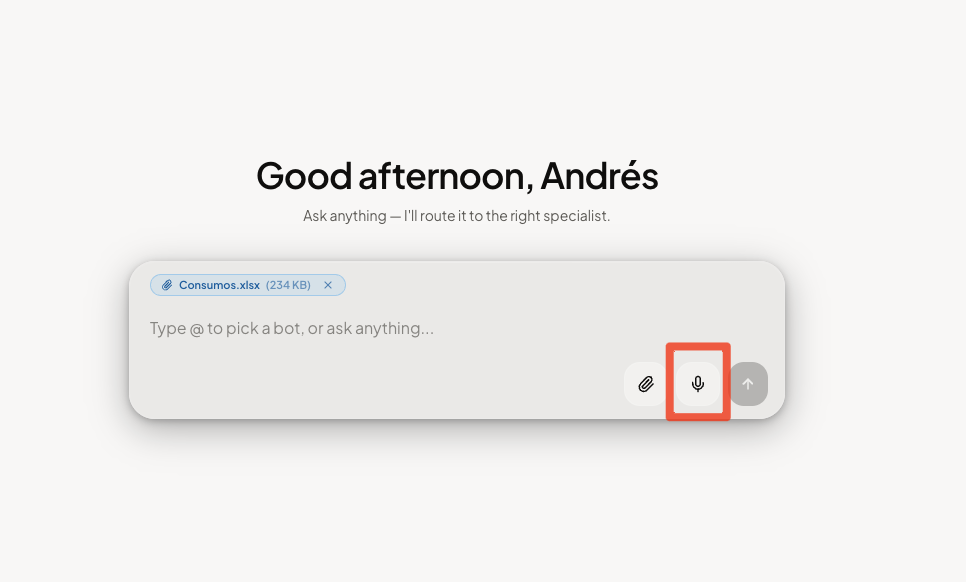
Allow microphone access
The first time you use voice input, your browser may ask for permission to use your microphone. Allow it to continue.
Speak your question
While recording, you'll see "Recording... tap the red button to stop" with a live waveform.
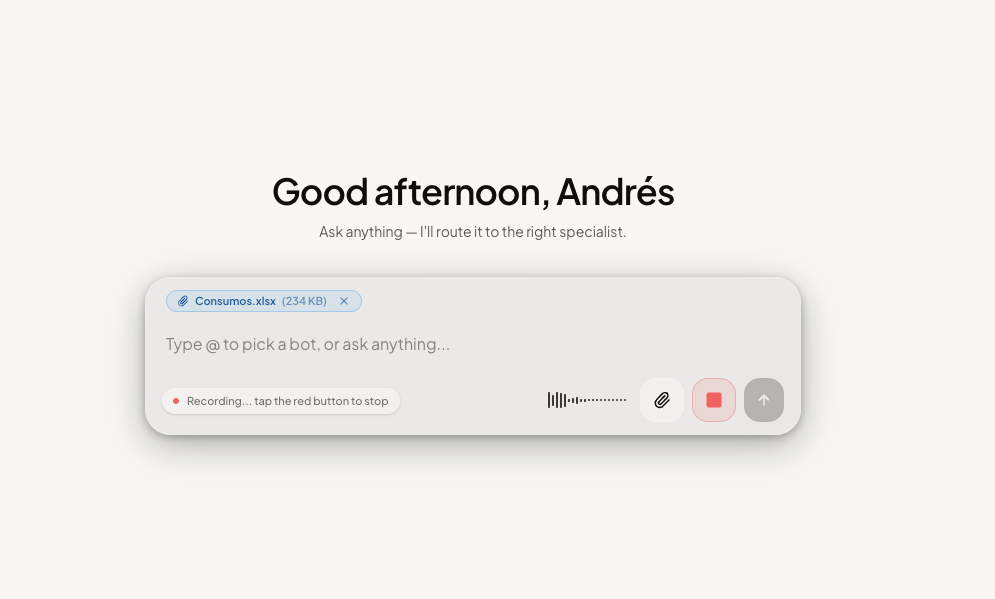
Stop recording
Tap the red button to stop. Norami transcribes what you said and puts the text in the message box.
Review and send
Read over the transcribed text, fix anything that needs it, then send the message as usual.
The transcription lands in the message box before it's sent — nothing goes to your assistant automatically. Use that moment to fix names or numbers voice input misheard.
Troubleshooting
- "Permission denied" — your browser is blocking microphone access for app.norami.ai. Enable the microphone for the site in your browser's site settings, then try again.
- Keep recordings reasonably short. One question at a time works best — and very long recordings can hit the upload limit.