 Norami Docs
Attaching files in chat
Bring a one-off file into a conversation without importing it as a dataset.
Sometimes you just want your assistant to look at a file for a single question — compare it against something, or ask about a document you won't need again. Attaching it in chat is faster than importing it as data, and it only applies to this conversation: the file isn't imported, and it doesn't change what your assistant permanently knows. For data your assistant should keep knowing about, see Adding your data.
Attach a file
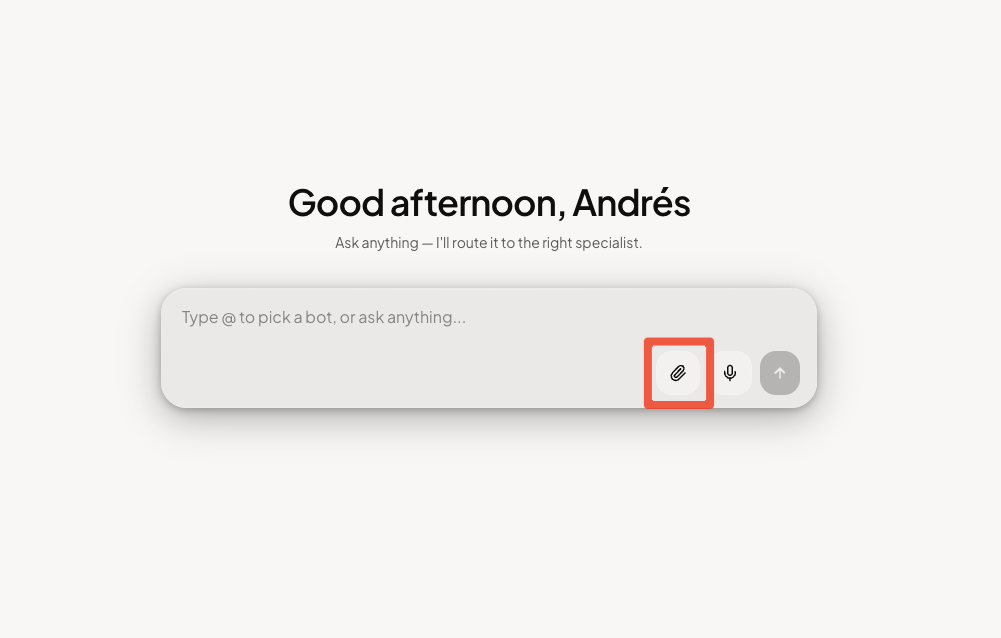
Pick your file
Choose a CSV or Excel file (.csv, .xlsx, .xls). You can attach up to 3
files at once, up to 15 MB each.
Review the attachment
The file appears as a chip above the message box. Click the × on a chip to remove it before sending.
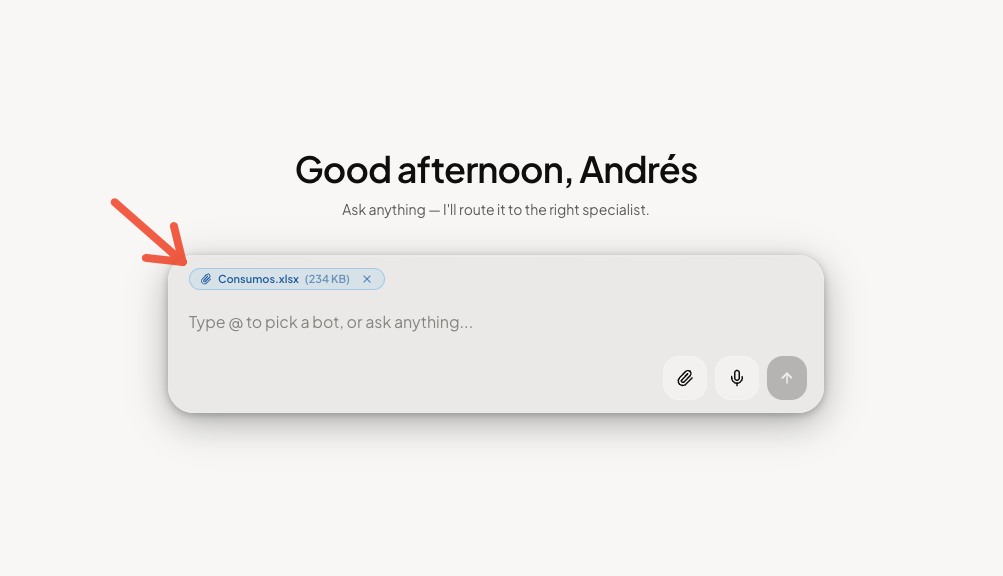
Type your question and send
Write your question and send the message. The attached files upload together with it.
If a file fails to upload, the message won't send — so your assistant never answers about a file it didn't actually receive. Try sending again, or remove and re-attach the file.
Attachment vs. adding data
- Attach in chat — temporary, for this conversation only. Nothing is saved for future chats or other teammates.
- Add data — permanent, becomes part of your data. Available to the assistant going forward, and visible to every teammate who can use it.