 Norami Docs
Organizing your conversations
Group your conversations into folders and export answers to Excel.
Once your team has been chatting for a while, the sidebar fills up. Norami gives you two ways to stay on top of it: folders to group related conversations, and exports to take answers out of Norami and into Excel.
Group conversations into folders
Folders are personal — they organize your chat list, and each folder gets a color so you can tell them apart at a glance.
Create a folder
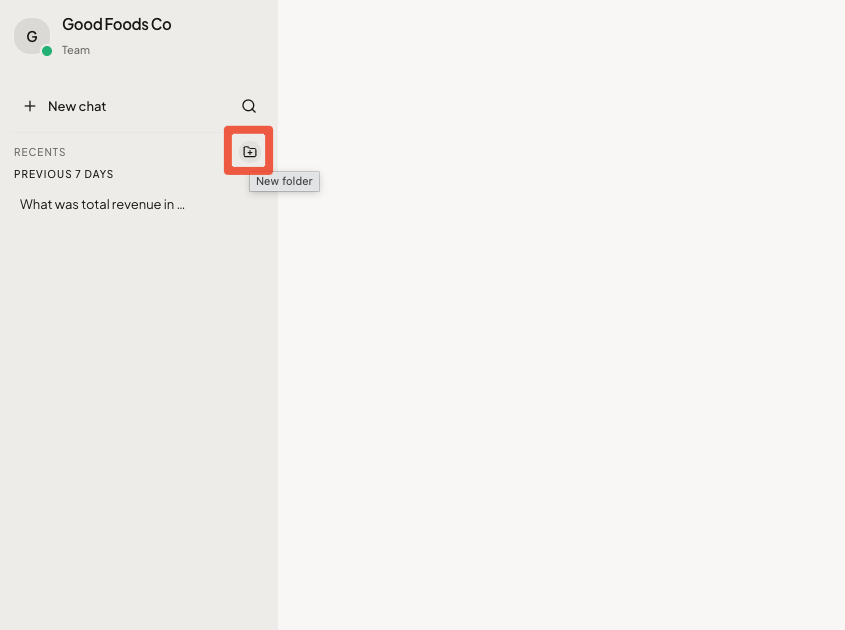
Hover over the Recents header in the sidebar and click the New folder button. Type a name and press Enter.
Move a conversation into a folder
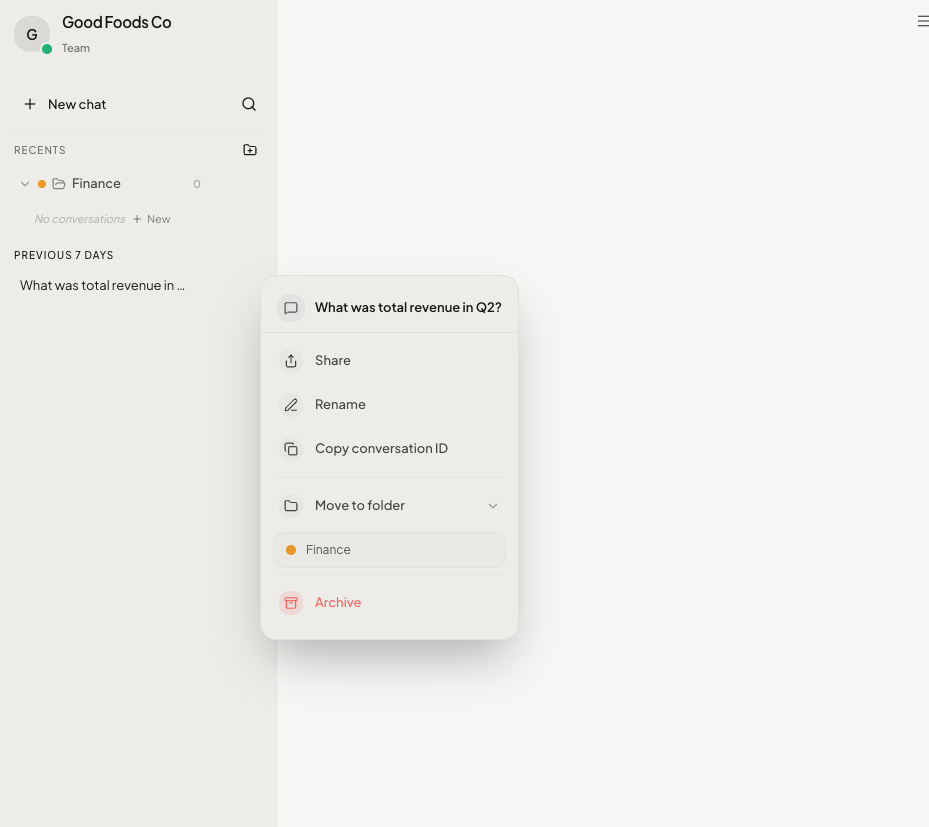
Hover over a conversation, click the ⋯ menu, and choose Move to folder. Pick the folder from the list. To take it back out, open the same menu and choose Remove from folder.
You can also start a fresh conversation directly inside a folder: hover over the folder and click the + button.
Rename, recolor, or delete a folder
Hover over a folder and click its ⋯ menu:
- Rename folder — change the name.
- Change color — pick one of eight colors.
- Delete folder — removes the folder only. The conversations inside are moved back to your main chat list; nothing is deleted.
Rename or archive a conversation
Open a conversation's ⋯ menu to:
- Rename — give it a name you'll recognize later. New conversations are named automatically from your first question, so a quick rename helps for ones you'll come back to.
- Archive — remove the conversation from your chat list when you're done with it.
There's no way to reopen an archived conversation from the app today, so archive only conversations you no longer need. If you want to keep a record, export it to Excel first (below).
Export answers to Excel
Everything your assistant produces can leave Norami as a file:
Export a whole conversation
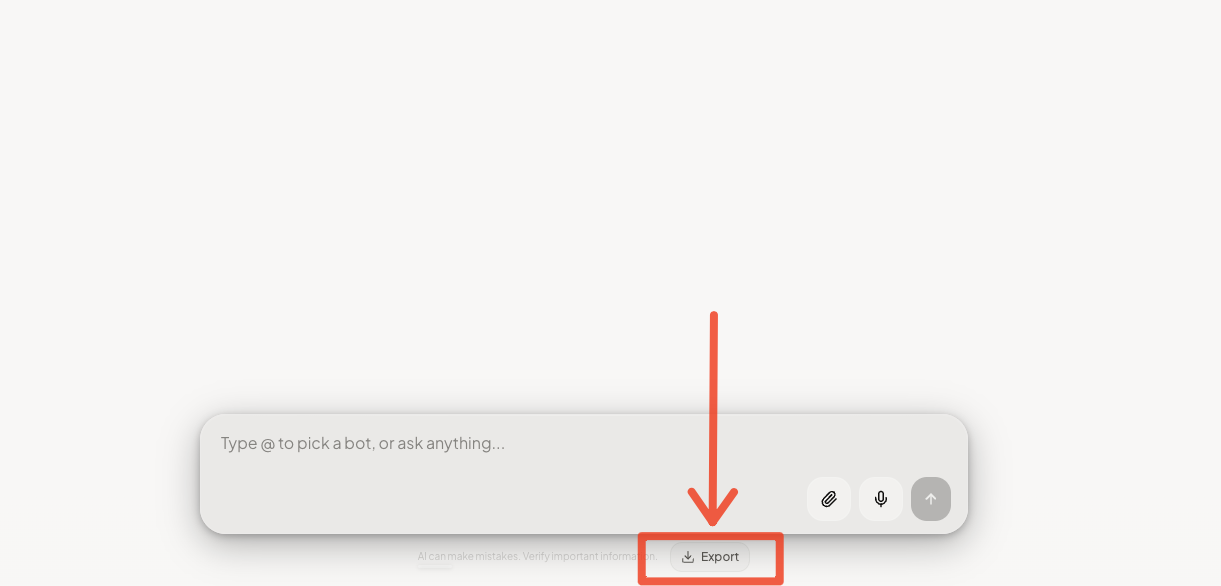
Below the message box, click Export (it appears once a conversation has a question and an answer). You get an Excel file with the full transcript — every question and answer with timestamps — plus a summary sheet with message counts and usage stats.
Export a single table
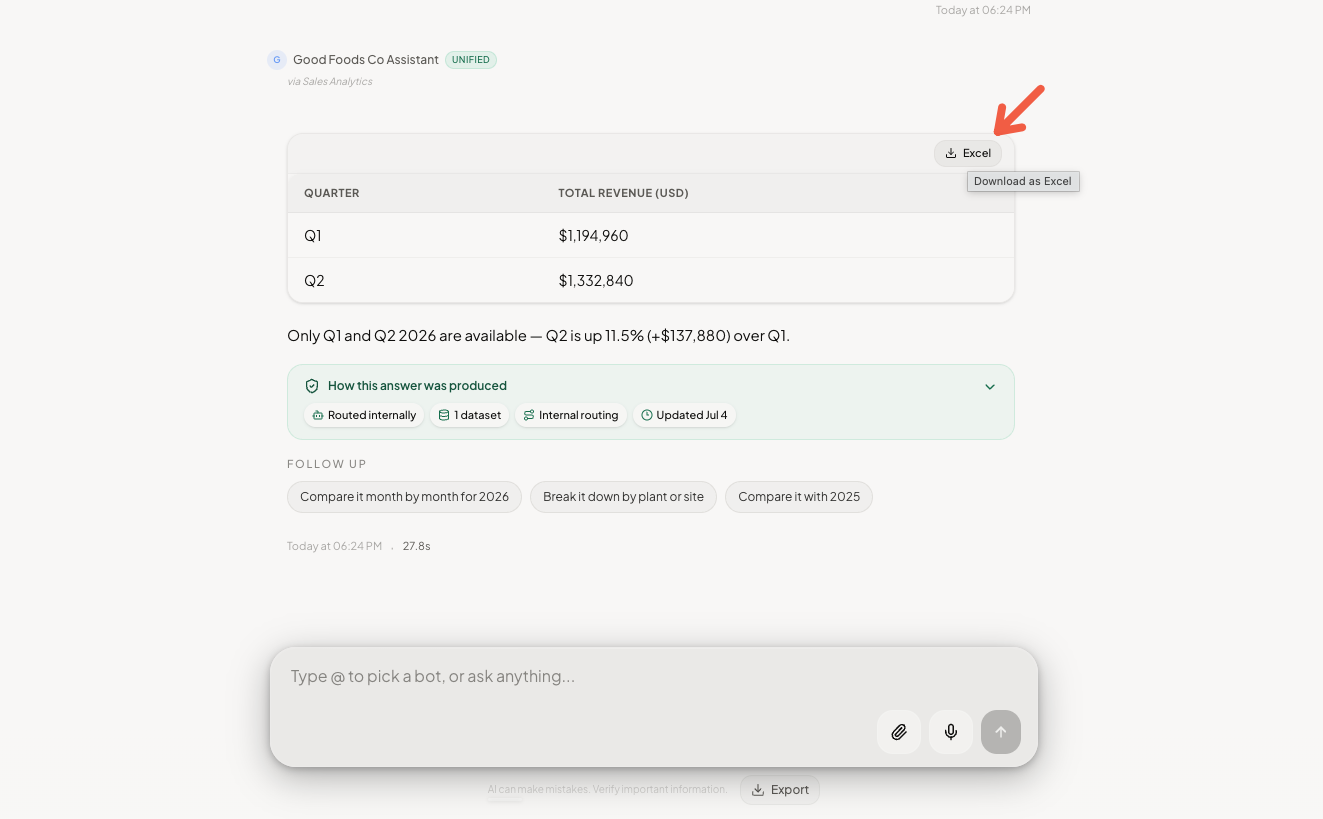
Hover over any table in an answer and click the Excel button above it to download just that table as a spreadsheet.
Download a chart
Hover over any chart in an answer and click PNG to save it as an image — or click the chart to view it full-size first, then use the download button.