 Norami Docs
Norami on your phone
Add Norami to your iPhone or Android home screen and open it like an app.
Norami works in your phone's browser — but you can go one better and put it on your home screen, so it's one tap away like any other app. Same account, same assistants, same sign-in.
iPhone & iPad (Safari)
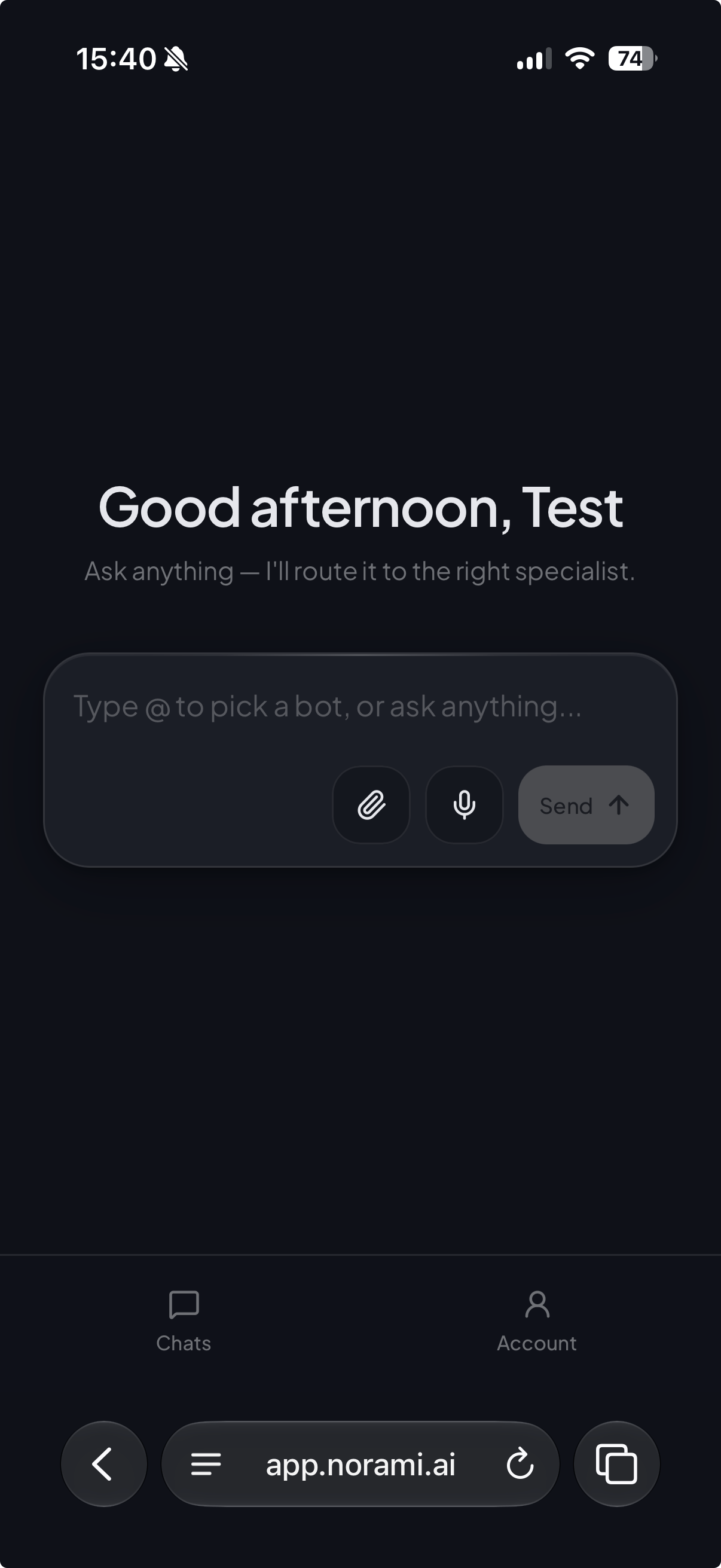
Tap Share
Tap the menu button in Safari's address bar, then Share. (On some iOS versions, Share is its own button — the square with an arrow pointing up.)
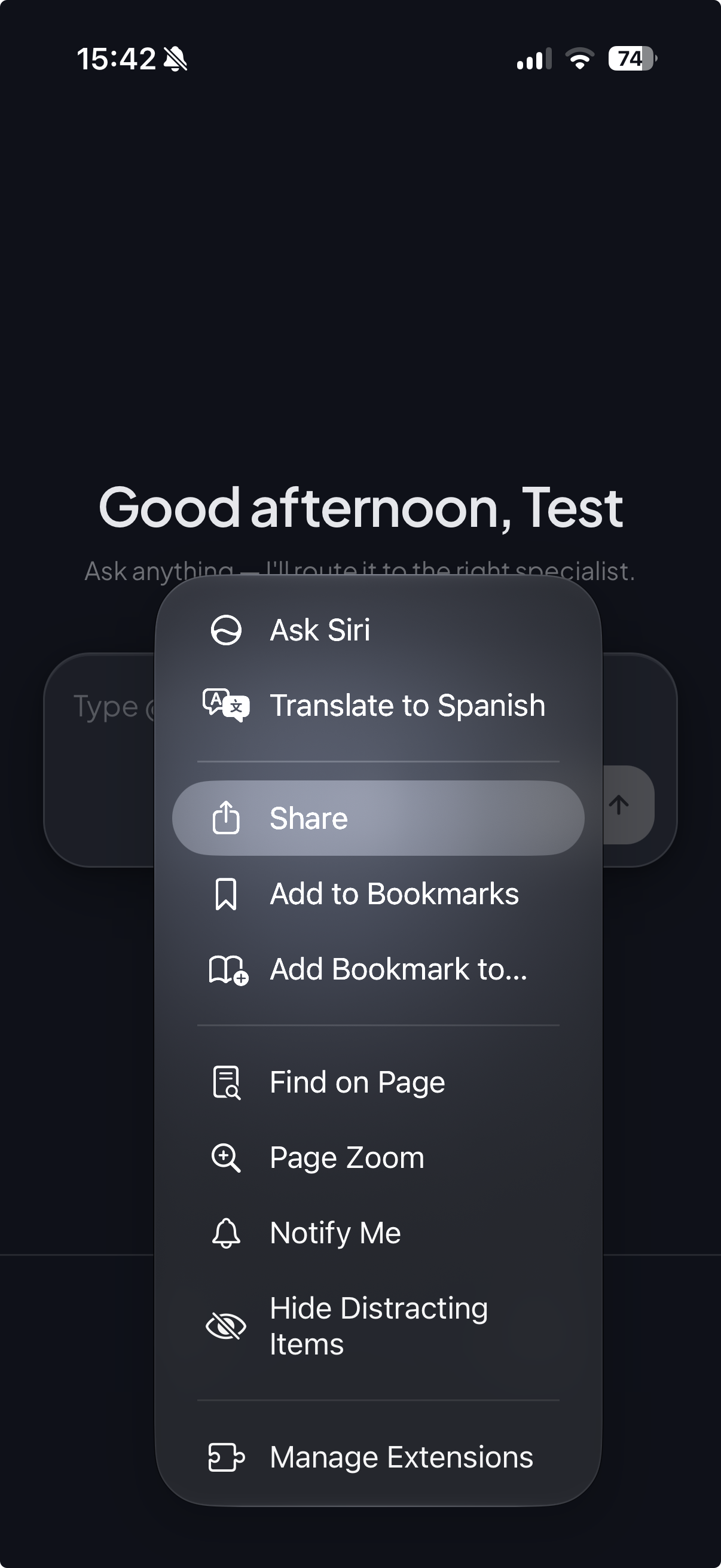
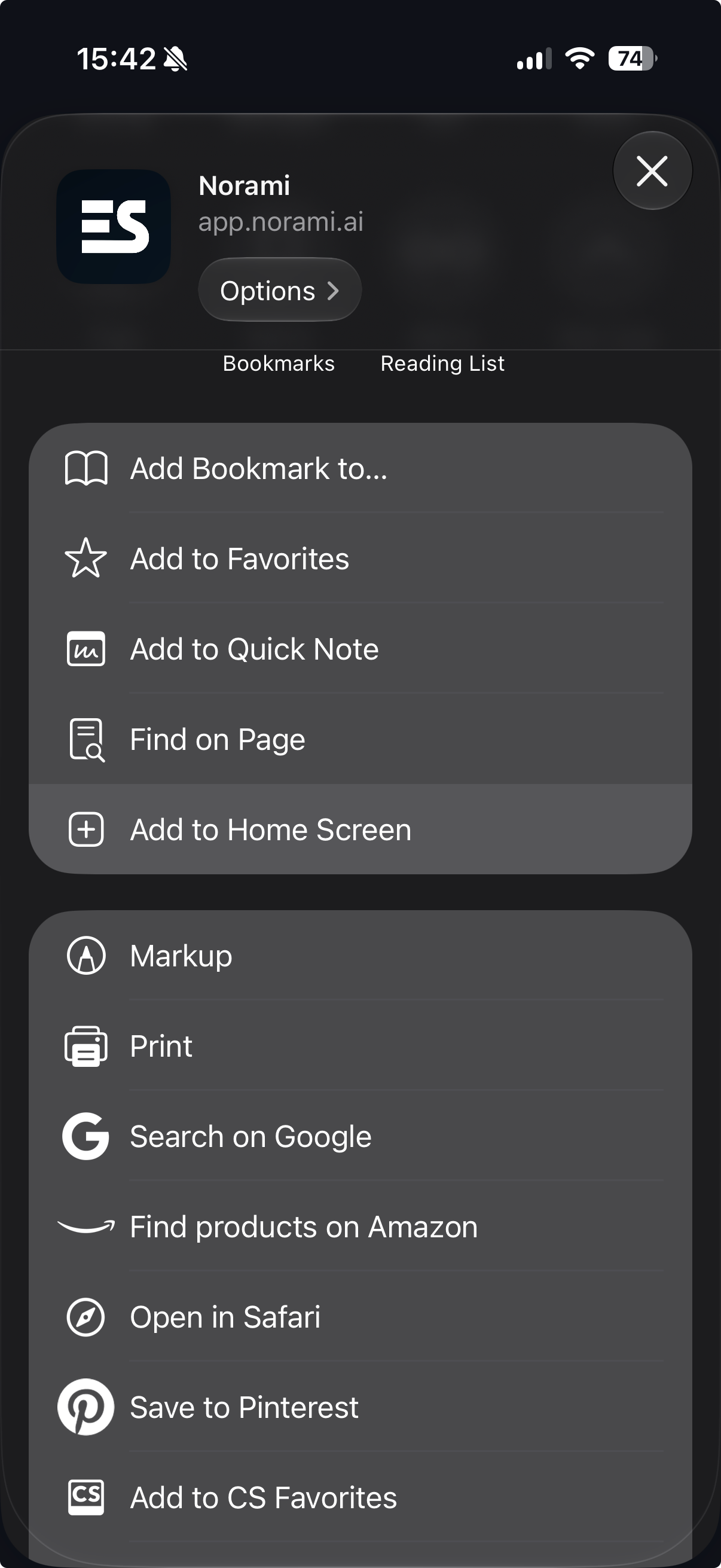
Name it and Add
Keep the name (or shorten it to "Norami"). If you see an Open as Web App option, leave it on — it makes Norami launch fullscreen, without Safari's address bar, like a real app. Then tap Add, and Norami appears on your home screen.
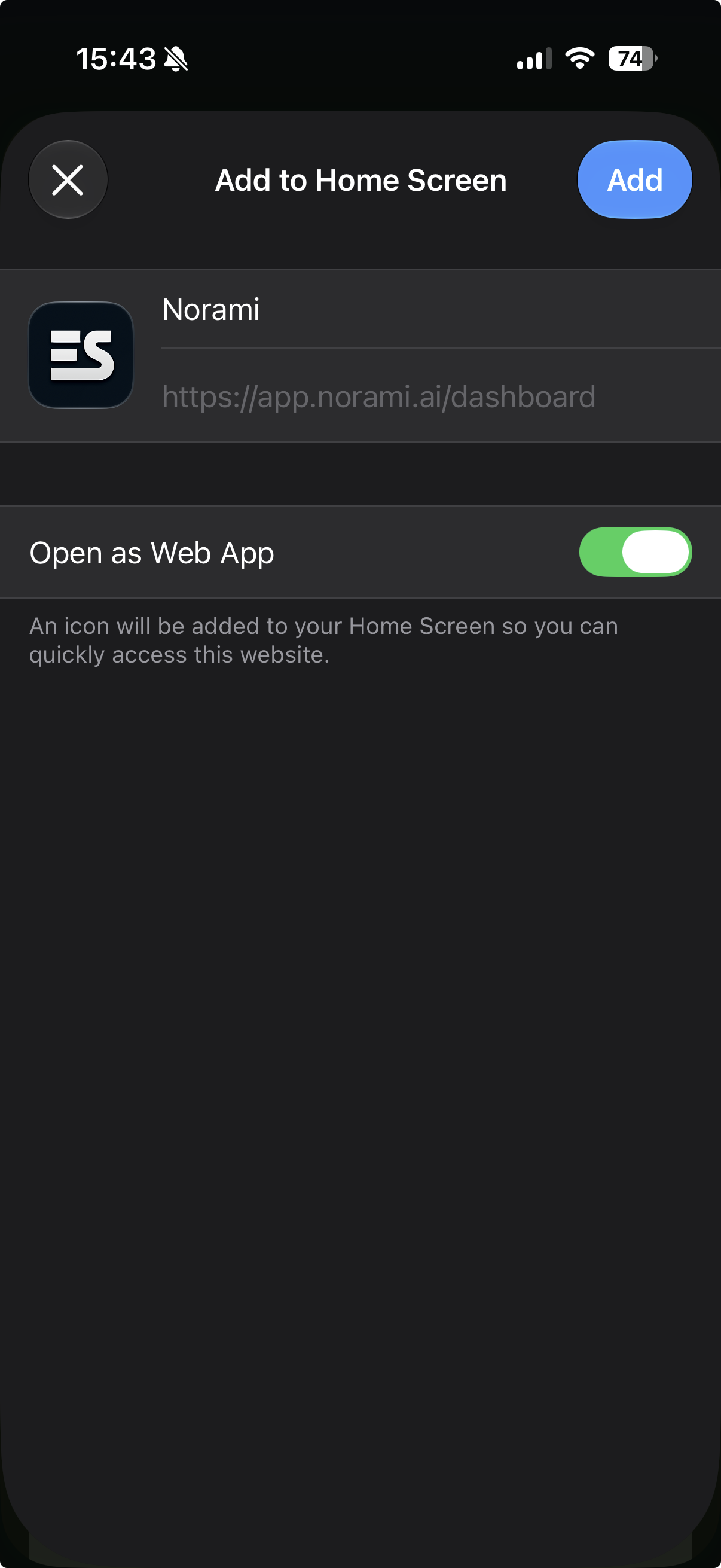
The Add to Home Screen option only appears in Safari. If you use Chrome on iPhone, open app.norami.ai in Safari for this one step.
Android (Chrome)
Open Norami in Chrome
Go to app.norami.ai in Chrome and sign in.
Open the menu
Tap the ⋮ menu in the top-right corner.
Add to Home screen
Tap Add to Home screen, then confirm. Norami appears on your home screen.
Using it day to day
Opening Norami from the icon works exactly like Norami in your browser — you stay signed in with the same account, and everything your role gives you access to is there: chatting, voice, attachments.
Ask by voice works on your phone too — tap the mic in the message box. The first time, your phone will ask for microphone permission.