 Norami Docs
Departments
Group assistants and teammates so each department only sees what's relevant to it.
Departments group assistants and the people who use them. Assistants in the General pool are visible to everyone in the workspace; assistants assigned to a department are visible only to that department's members.
Create a department
Open Departments
Open the menu at the bottom of the sidebar, choose Workspace, then select Departments from the workspace navigation.
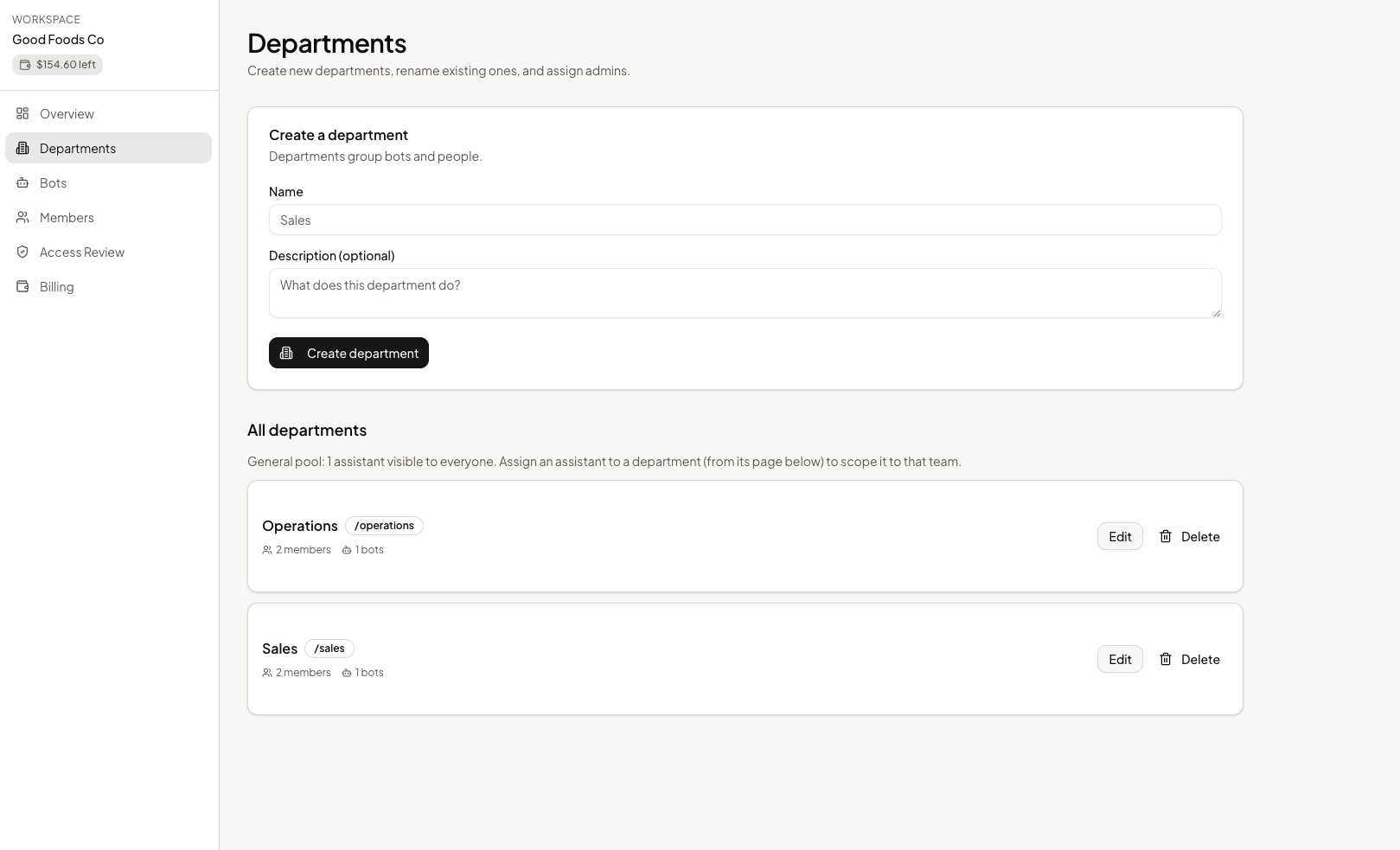
Fill in Create a department
Enter a name (2–80 characters) and an optional description.
Create department
Select Create department.
Add people
Open the department, then use the Members card to add an existing teammate. When you add someone, you also pick their department role — Admin, Data manager, or Member. As the app puts it, "Admins manage the department, data managers can update its data, members can chat."
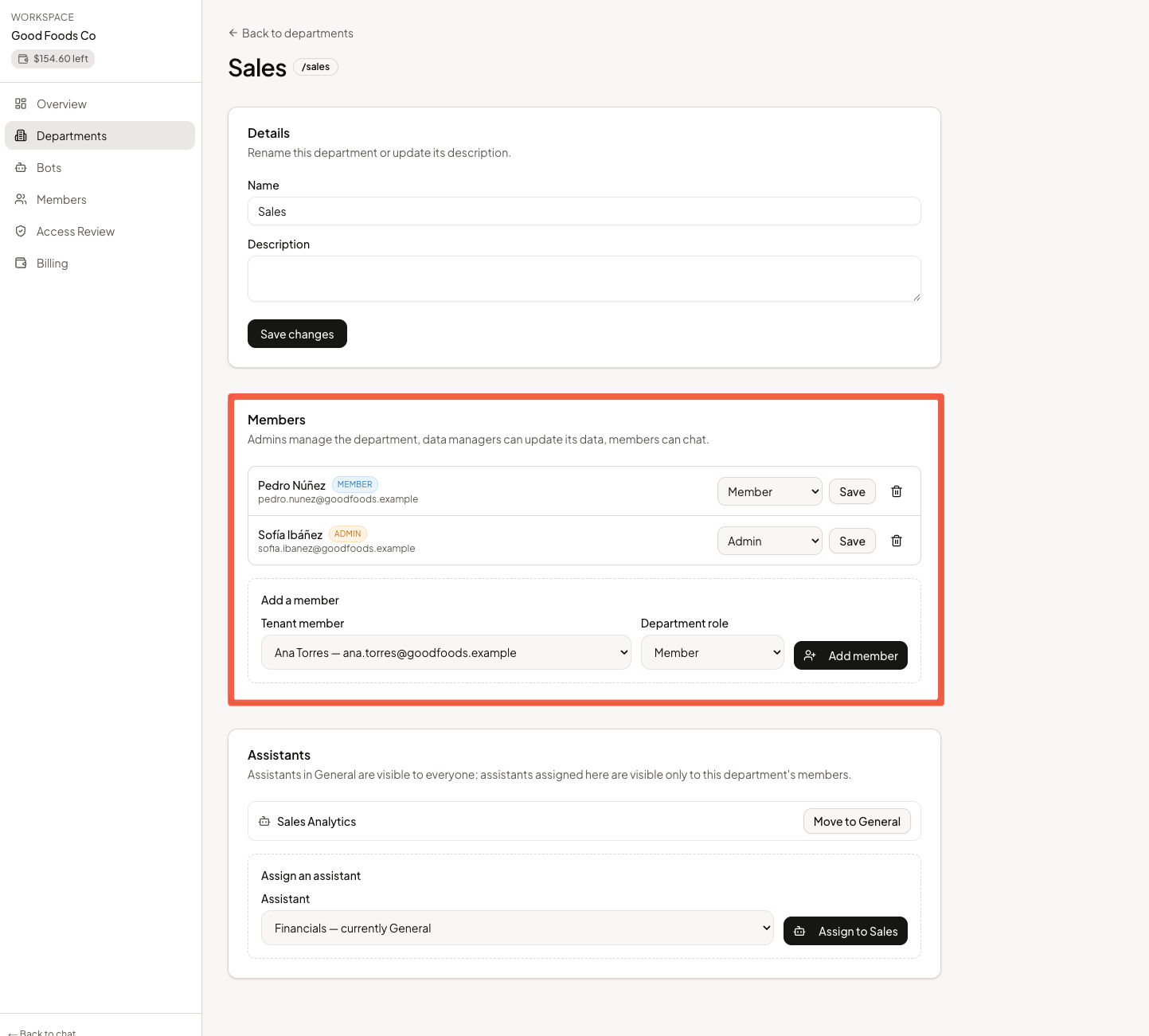
Department roles are separate from workspace roles. See Roles for how the two fit together.
Assign assistants
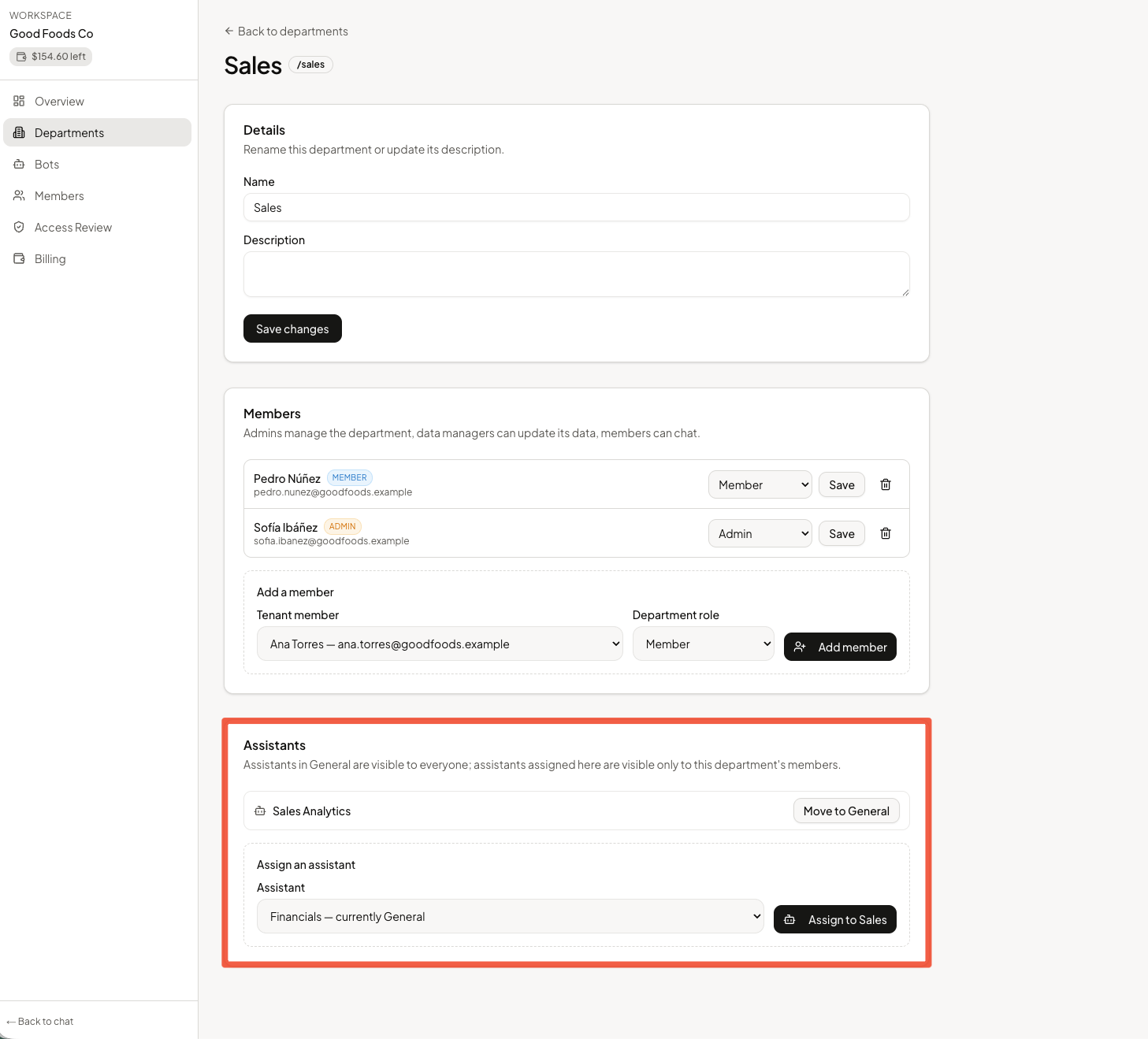
Use the Assistants card to move assistants in and out of the department:
- Select Assign an assistant and pick from the list — each option shows where it currently lives, so you can see if it's moving from General or another department.
- To move an assistant back out, select Move to General on its row.
As the app puts it, "Assistants in General are visible to everyone; assistants assigned here are visible only to this department's members."
Department admins get their own console
Department admins see a focused console — Overview, Bots, Members, Access Review — scoped to just their department, with ← Back to chat to return to the chat app.