 Norami Docs
Understanding usage & cost
Where to see what you've spent and how to keep it under control.
Your wallet covers the AI work your team does in Norami. This page covers where to see what's been spent and how to keep spending under control — for how the wallet, top-ups, and automatic recharge work, see How billing works.
Watch a top-up and a usage limit being set, end to end:
Read your activity
Open the menu at the bottom of the sidebar and choose Workspace, then select Billing. The Recent activity list shows every change to your balance — each row shows the amount and the running balance after it.
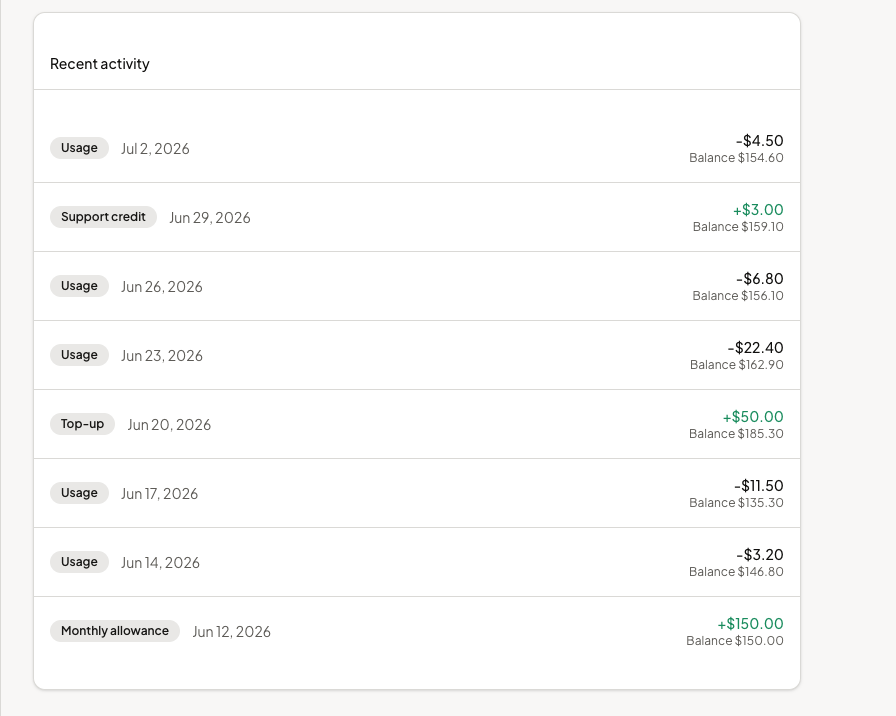
Each row carries a badge showing what caused it:
- Usage — an assistant answering a question
- Monthly allowance — your plan's monthly credit resetting
- Top-up / Auto top-up — credit you (or automatic recharge) added
- Support credit — credit added by the Norami team
- Plan upgrade — the prorated charge from an immediate plan upgrade
Set a monthly usage limit
If you want a hard ceiling on spending regardless of top-ups, set a monthly usage limit.
Open the Monthly usage limit card
From the same Billing page, find the Monthly usage limit card. It's off by default — until you set one, AI spend is bounded only by your wallet balance.
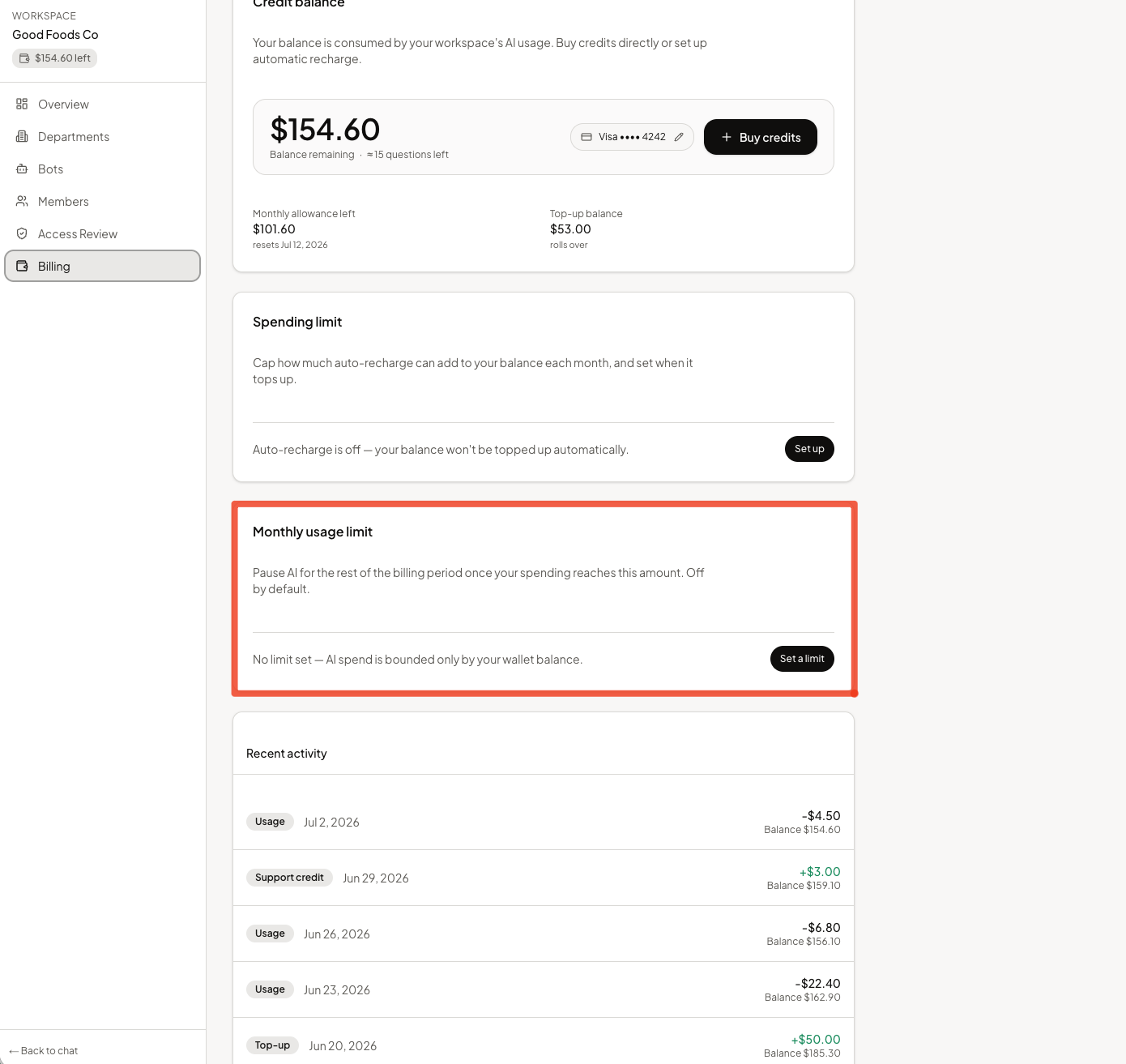
Set a limit
Select Set a limit and choose an amount between $5 and $10,000.
Norami pauses AI actions at the limit
Once set, the card tracks your spending against the limit — how much you've used, with an Adjust limit option. You'll get a warning once you've reached 80% of the limit, and AI actions pause for the rest of the billing period once you reach it.
Pausing never touches your data or assistants — nothing is deleted or changed. Everything resumes automatically when the new month starts, or as soon as you raise the limit.
Invoices
Workspace owners can select Manage billing in the Invoices & billing section of the Billing page to open the billing portal, where you can download receipts and manage the card on file.