 Norami Docs
Updating & refreshing data
Refresh a dataset with a newer file, or add a brand-new file to an existing assistant.
Your data changes over time. Norami keeps your assistant current without rebuilding it. There are two situations: refreshing an existing dataset with a newer export, or adding a brand-new file.
Here's the whole refresh, start to finish, in under a minute:
Refresh a dataset with a newer file
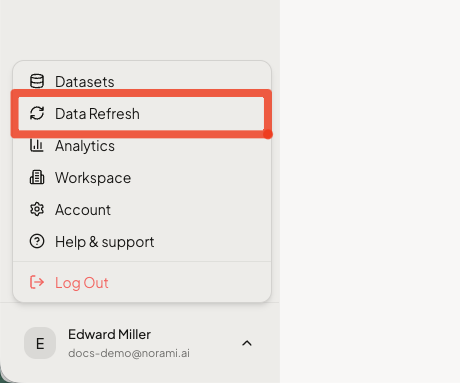
Pick the dataset to update
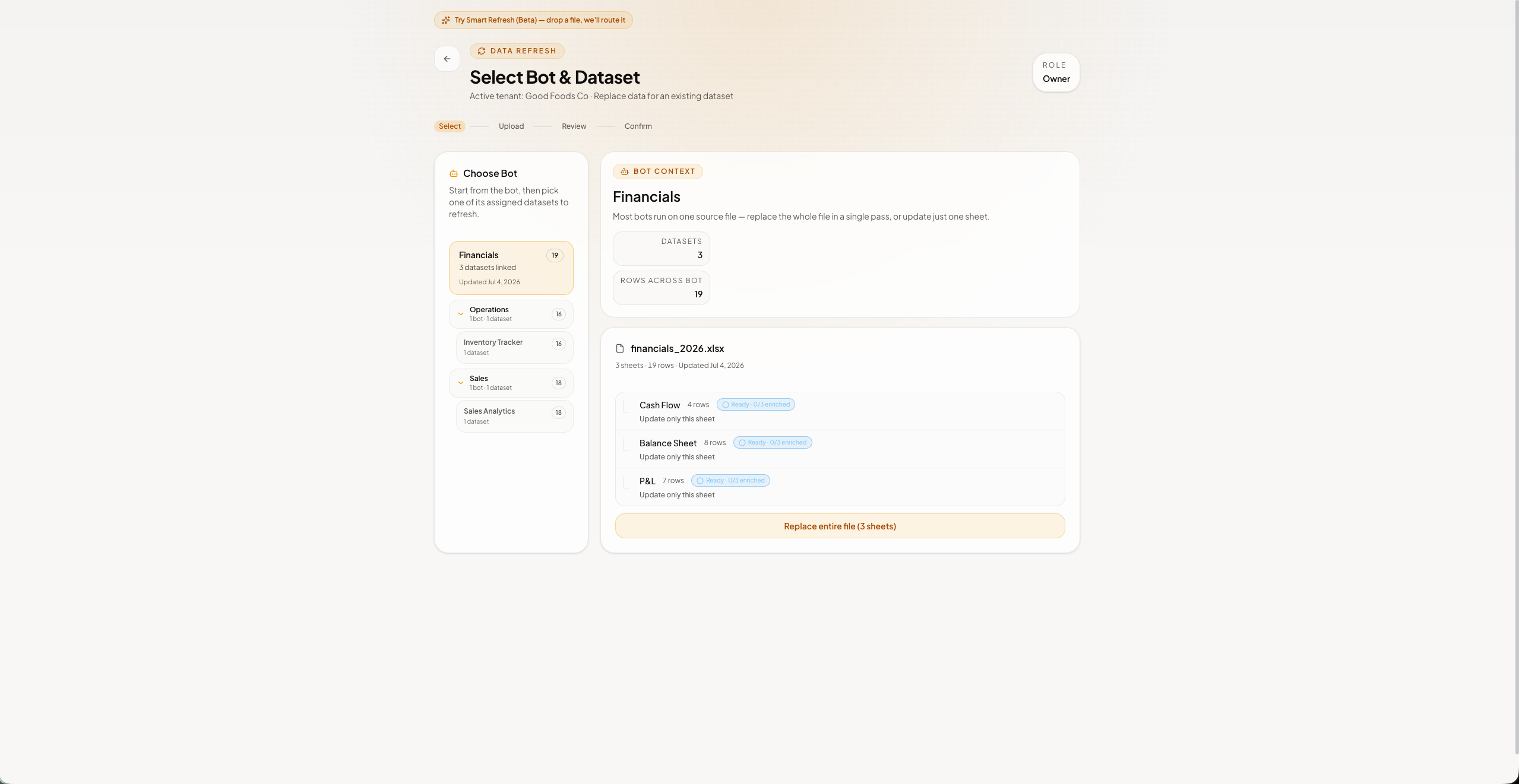
Choose the dataset you want to refresh. For a single-sheet dataset, select Update Data. For a workbook with multiple sheets, choose the scope right here: Update only this sheet or Replace entire file.
Upload the newer file
Upload the newer version of the file. Norami accepts CSV, XLS, or XLSX files up to 200 MB.
Review and confirm
Norami shows you exactly which sheets matched and what will be replaced. Check the list, then confirm — for a multi-sheet file the button reads Replace matched sheets.
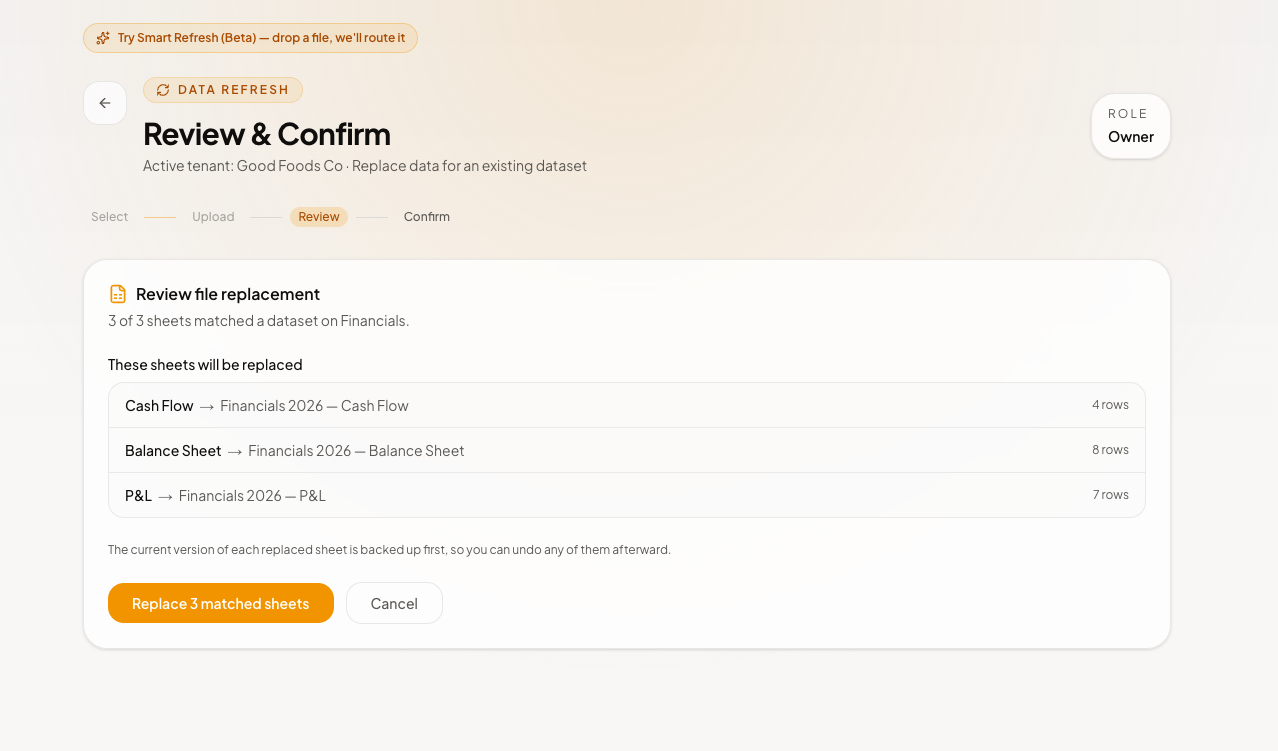
The new file should keep the same column structure as the one it's replacing. Files with the same structure are recognized automatically and updated in place — and the current version of each replaced sheet is backed up first, so you can undo afterward.
If only some sheets match
Sometimes only part of a workbook matches — for example, 2 of 3 sheets. The review screen replaces the sheets it matched and lists the rest under Skipped — refresh these separately. Nothing is lost: run Data Refresh again for a skipped sheet, or use Update only this sheet on its dataset directly.
Smart Refresh (Beta)
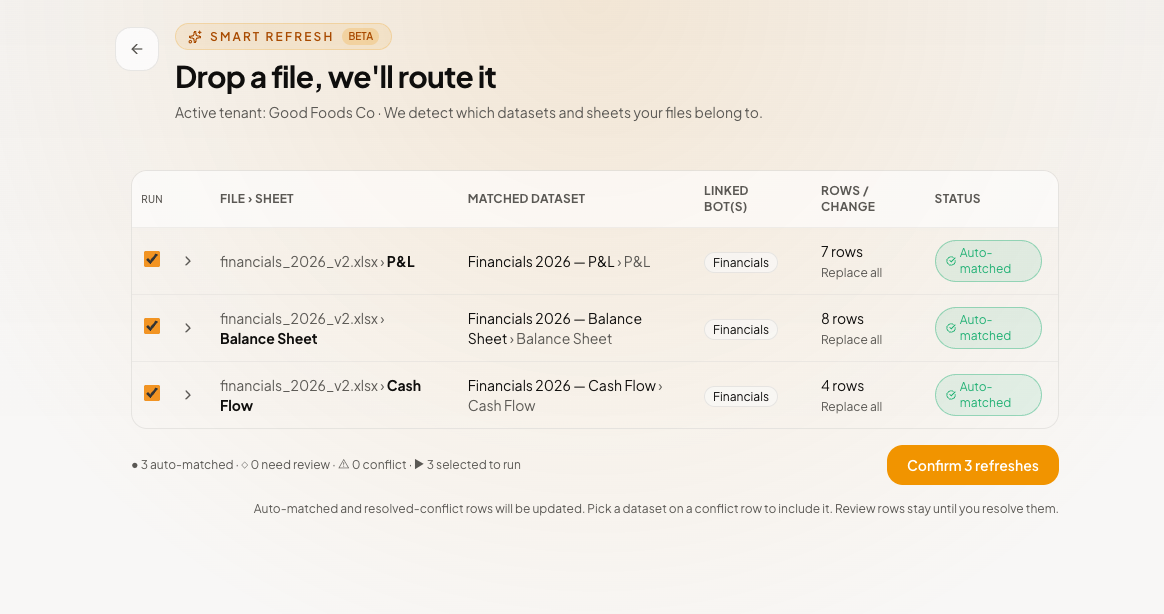
If you're not sure which dataset a file belongs to, try Smart Refresh (Beta) — drop a file, we'll route it. Drop a file and Norami matches each sheet to the dataset it belongs to. Review the proposed matches before confirming.
Add a new file to an existing assistant
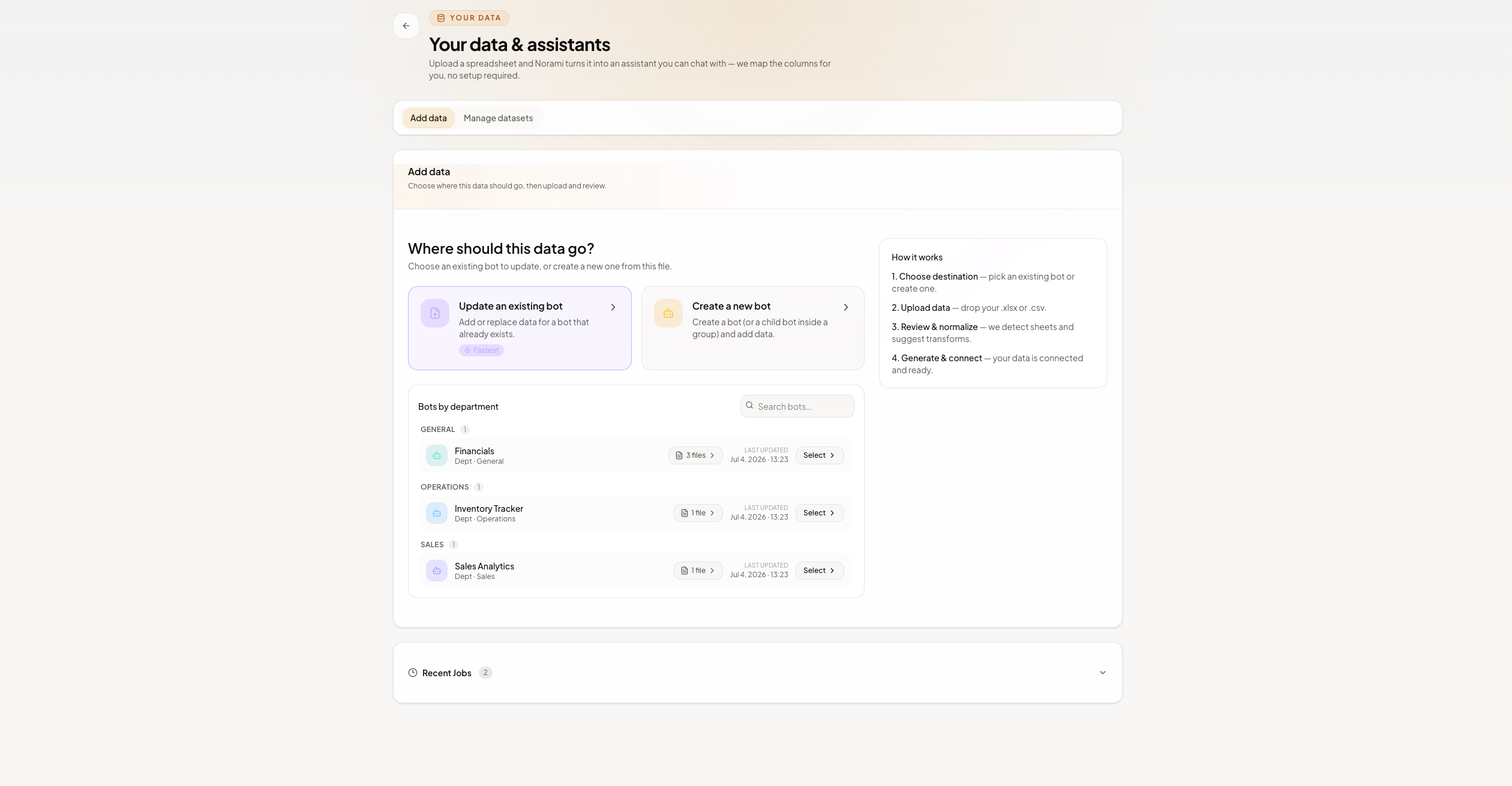
To add a brand-new file rather than refresh an existing one, go to Datasets → Add data, then choose Update an existing bot (rather than Create a new bot). From there you'll follow the normal upload-preview-import flow described in Adding your data.
After an update
Ask your assistant a couple of questions that touch the new data to confirm it imported as expected.
Data updates need upload permission — owners, admins, and data managers can refresh or add data.