 Norami Docs
Account settings
Update your name, change your password, and turn on two-factor authentication.
Your account settings are personal to you and available whatever your role in the workspace. They cover your name, your password, and two-factor authentication (2FA).
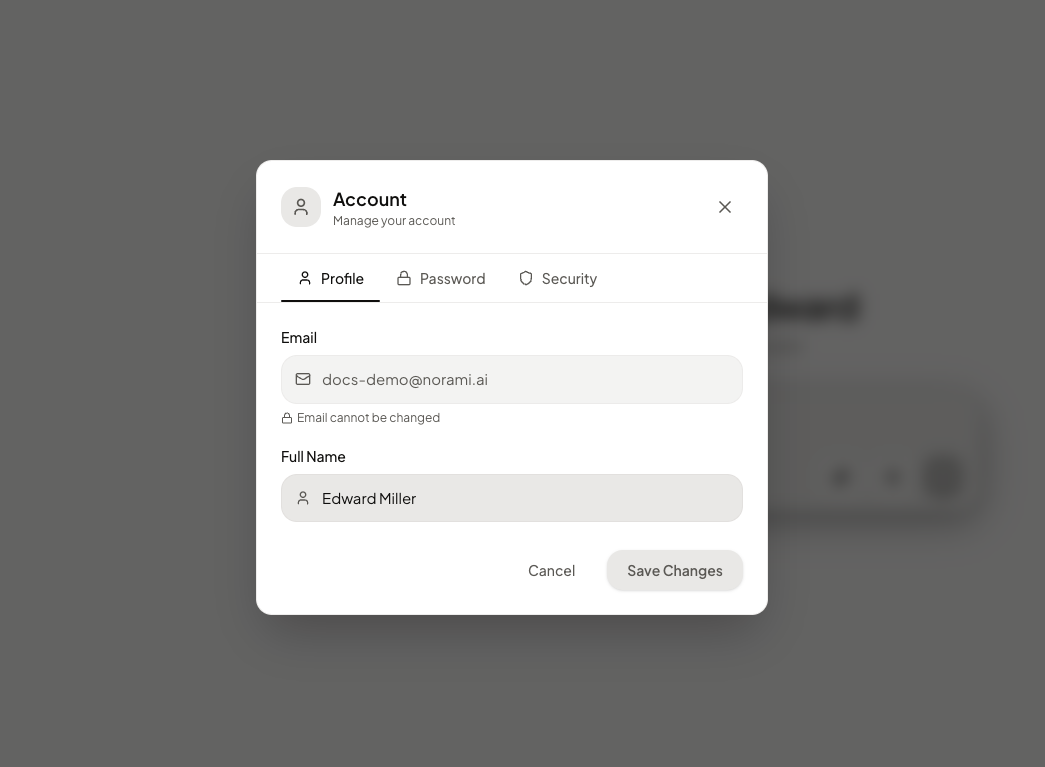
Open the menu at the bottom of the sidebar and select Account to open the account modal, which has three tabs: Profile, Password, and Security.
Update your name
Edit your full name
On the Profile tab you can edit your full name. Your email is shown but disabled — it can't be changed here.
Save the changes
Select Save Changes.
Need to use a different email? Contact support using Get Help in the sidebar menu.
Change your password
Open the Password tab
In the account modal, select the Password tab.
Enter a new password
Type your new password and confirm it. It must be at least 6 characters, and the confirmation must match.
Save it
Select Update Password.
We recommend using a password manager to generate and store a strong, unique password.
Two-factor authentication (2FA)
Start enrollment
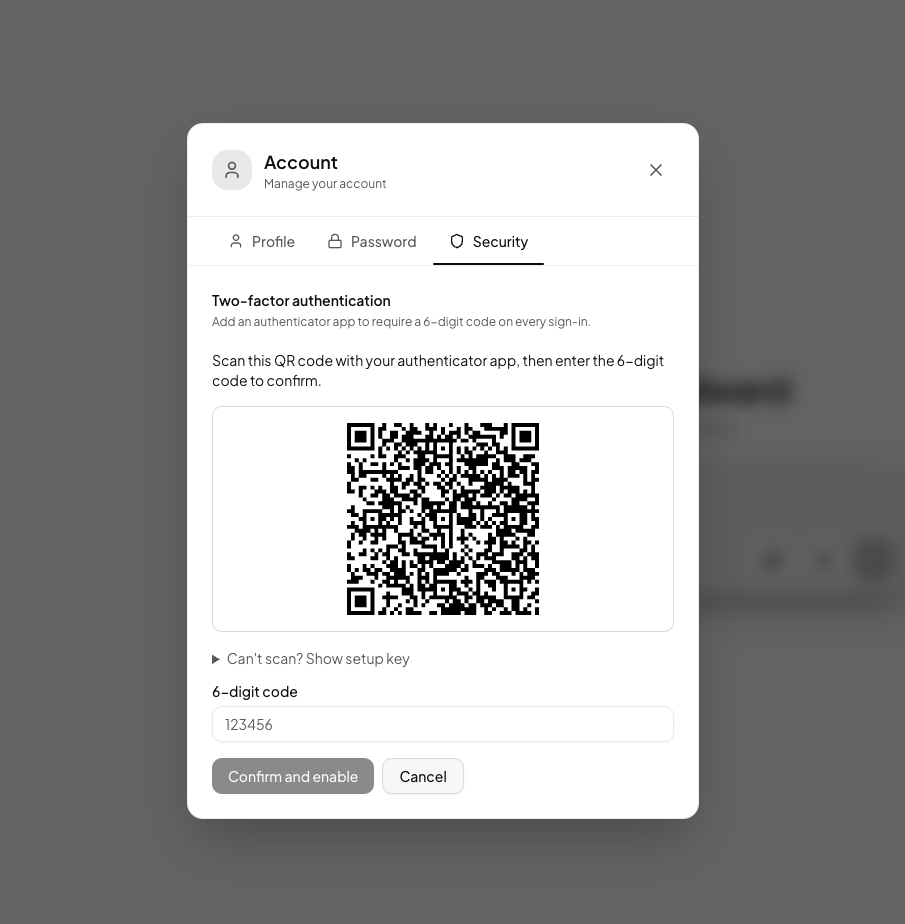
On the Security tab, choose to add an authenticator app. The app will show: "Add an authenticator app to require a 6-digit code on every sign-in."
Scan the QR code
Scan the code with an authenticator app such as Google Authenticator, 1Password, or Authy.
Verify with a code
Enter the 6-digit code your authenticator app generates to confirm it's set up correctly.
Save your backup codes
After 2FA is enabled, you'll be shown a set of backup codes. Save them somewhere safe — you'll need one if you ever lose access to your authenticator app.
From then on, signing in asks for a code from your authenticator app. If you lose your phone, a backup code lets you sign in instead. You can turn 2FA off again from the same Security tab.
Each backup code works only once. Store them somewhere other than the same device as your authenticator app.